Running LLMs locally with ollama
Introduction
The aim of this tutorial is to guide you in deploying a local server for hosting large language models (LLMs) on your local machine.
As you will see, this requires just a couple of commands with ollama and open-webui.
We used DeepSeek model as example, but you can download any other model from ollama's catalogue or from Hugging Face 🤗.
Requirements
This tutorial is suitable for Mac OSX without sudo admin rights. Depending on the model you chose it will be required strong computational power.
- homebrew
- python 3.11
- ollama
- open-webui 0.5.7 (optional)
Python 3.11 is required by open-webui, it will not work on any other version. If you don't care about web interfaces you can just skip these steps.
In addition, I recommend the use of virtual environments, but this will not be covered in this tutorial.
Installation
We start by installing python 3.11 and ollama via homebrew:
        brew install python@3.11
        brew install ollama
Switch to python 3.11
brew switch python 3.11
Downloading and running DeepSeek
Now you can download the model you wish with ollama. If you have the same setup as mine (Macbook Pro M3 PRO, 36GB RAM), I recommend you distilled models up to 14B parameters. I tested the 32B and the response time was in the order of minutes for a simple prompt.
ollama pull deepseek-r1:14b
It will take a couple of minutes to download the model (~9GB), but when it is done you will ready to use it with the following command:
ollama serve
Open another terminal, the previous one will be busy with the ollama server. To interact, run the line bellow:
ollama run deepseek-r1:14b
Now you are ready to go! Just send in a prompt direct on the terminal. The model will show its reasoning process between the "think" tags. For closing ollama send /bye as a prompt.
Getting a web interface to interact with the model (Optional)
If you wish to use a web interface very similar to OpenAI's, you can use open-webui.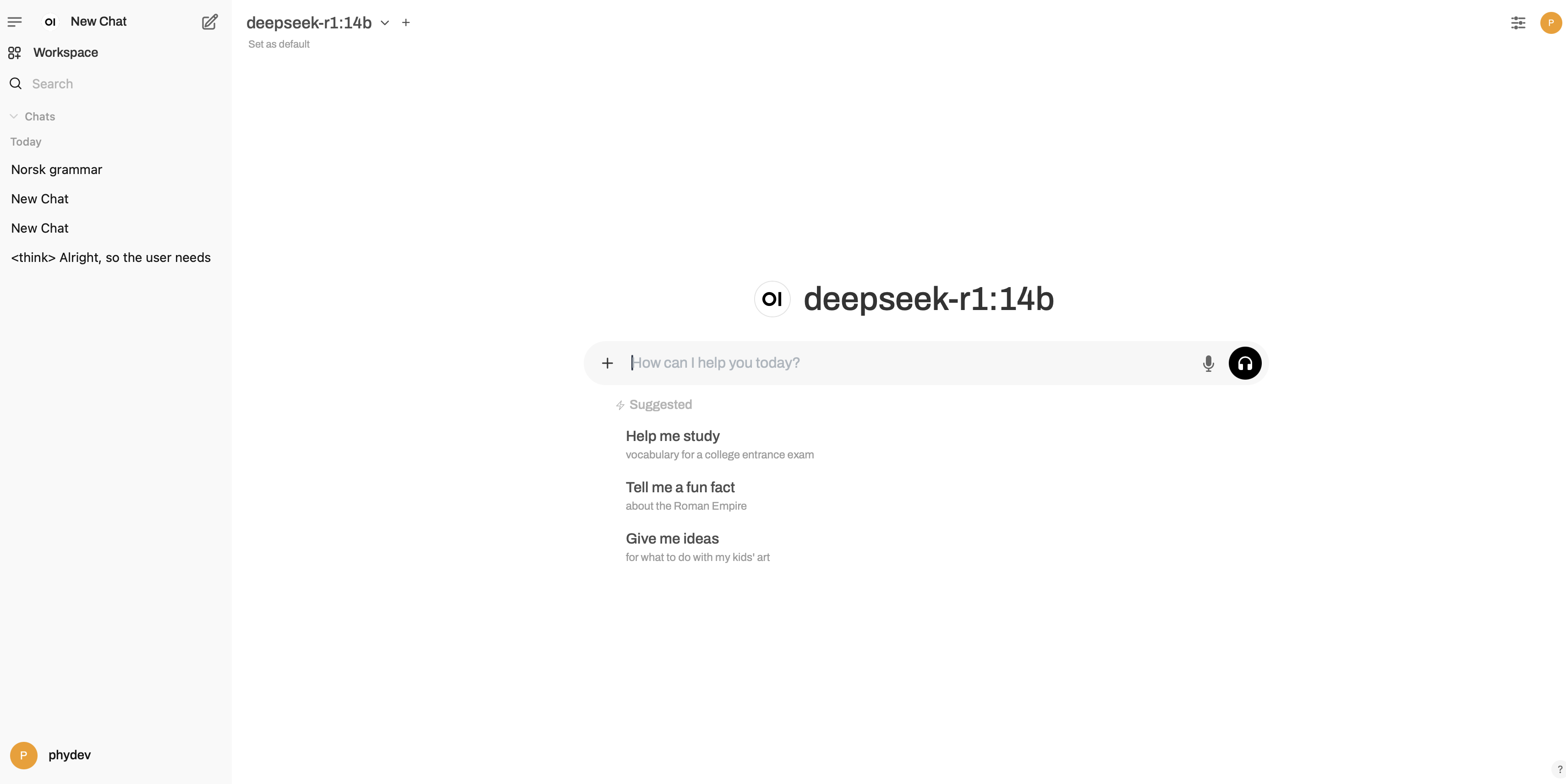 First install the open-webui package:
python3.11 -m pip install open-webui
Start the server
open-webui serve
Wait until the server starts up. Access the web interface in the address https://127.0.0.1:8080/.
It will ask you to register a username and password, this data will be hosted locally as well - this is your server.
All set! Enjoy!